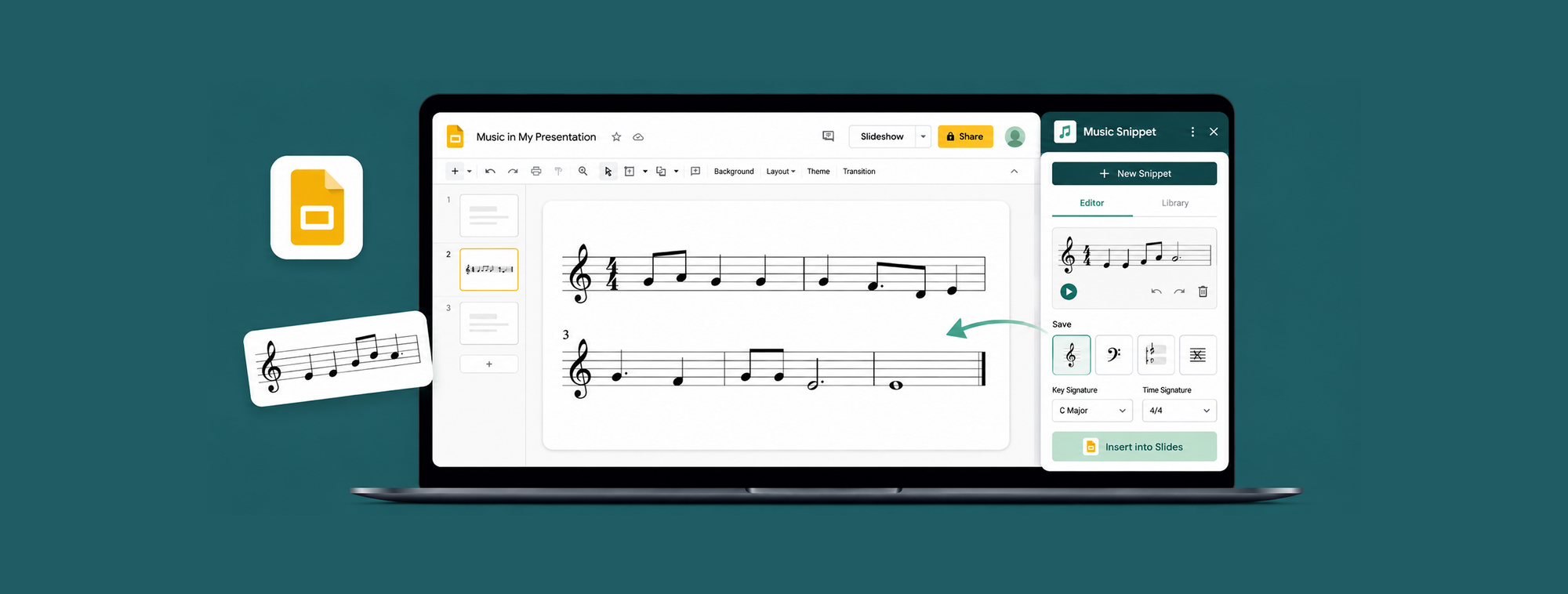
You're building a slide deck for tomorrow's lesson. You need a four-bar melody on the screen, big enough for the back row to read. Google Slides lets you insert text, shapes, images, charts, even a table. Music notation? Nothing. There's no staff, no notes, no clefs anywhere in the menus.
So most teachers fall back on a screenshot from a separate notation program, paste it in, and watch it turn fuzzy the moment they resize it. There's a cleaner way. With a free add-on called Music Snippet you can write notation directly inside Google Slides and place it on the slide as a sharp, scalable image, without ever leaving the presentation.
Why Google Slides has no notation option
Slides was built for general presentations, not music. The closest native option is inserting musical symbols as special characters in Google Docs, but those are isolated glyphs: a single sharp sign or a lone quarter note floating in text. You can't place notes on a staff, set a time signature, or write an actual melody with them. For a presentation, that's a dead end.
Screenshots get you a real staff but bring their own headaches. A pasted image of notation looks acceptable at its original size, then pixelates as soon as you scale it up to fill a slide. And if you spot a wrong note during class, fixing it means going back to the other app, re-exporting, and pasting again.
What is Music Snippet?
Music Snippet is a free add-on for Google Slides and Google Docs (and Microsoft PowerPoint and Word) that lets you create music notation and tablature and insert it straight into your file. You write the notation in a side panel, then click once to drop it onto your slide as an image. It comes from the team behind Flat for Education and is used by more than nine million people.
Because the notation is generated from real score data rather than a screenshot, it stays crisp at any size, which is exactly what you want on a projector.
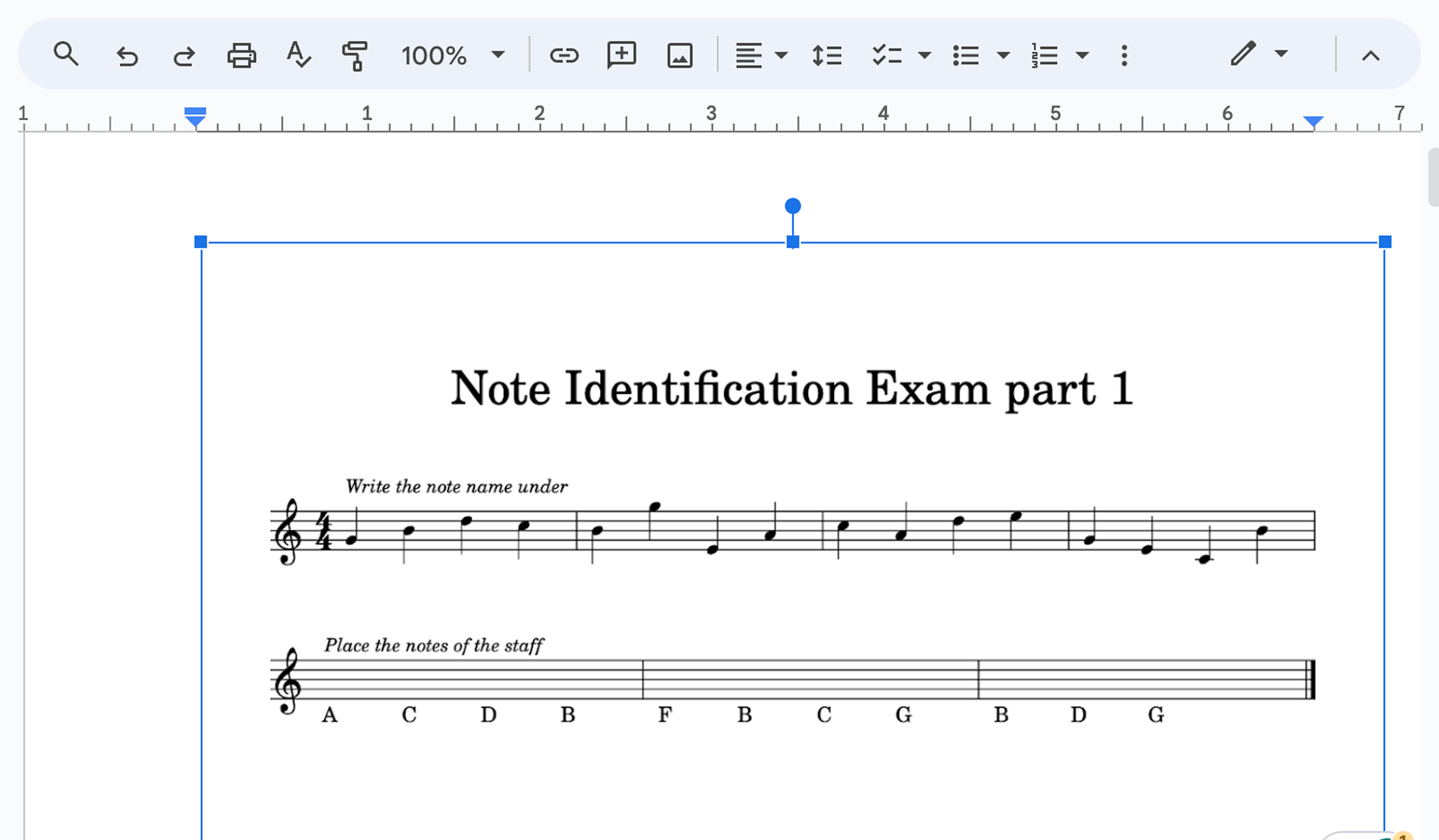
How to add music notation to Google Slides, step by step
- Install the add-on. In a Google Slides presentation, open the Extensions menu and choose "Get add-ons." Search for "Music Snippet" and install it.
- Open Music Snippet. Go back to the Extensions menu, hover over Music Snippet, and click "Open Music Snippet." A panel opens on the right.
- Create a new snippet. Click "New Music Snippet" and choose your stave type. Music Snippet offers a single staff, two staves, guitar and ukulele tablature, and an unpitched (percussion) staff, so you can match whatever your slide needs.
- Write your notation. Set the clef, key, and time signature, then enter your notes using the built-in editor. Add lyrics or rhythm syllables if you're teaching counting or sight-singing.
- Insert it onto the slide. Click "Add to Document" and the notation appears on your slide as an image. Drag a corner to size it for the room, and position it like any other picture.
Ways music teachers use notation on slides
Once notation lives on the slide instead of a handout, a few things get easier. You can put a sight-singing example on screen and have the whole class read it together, then advance to the next slide for the answer. You can build a rhythm-of-the-day warm-up deck and reuse it every morning. For theory, you can show a chord or a cadence on the staff and annotate it live with Slides' own shapes and text boxes.
For online and hybrid lessons this matters even more. Sharing your screen with notation that's genuinely legible beats holding a textbook up to a webcam, which is a bar most of us have sadly cleared.
Build once, reuse everywhere
If you sign in with a Flat for Education account, the snippets you create are saved to a score library in a dedicated Music Snippet folder. So the example you built for Monday's slide is still there when you want it in a worksheet on Friday. The same add-on works in Google Docs, PowerPoint, and Word, so notation made for a slide drops straight into a printed handout without rebuilding it.
One honest limitation worth knowing: snippets are designed for short examples rather than full multi-page scores. For a melody, an exercise, or a chord progression on a slide, that's exactly the right size. For an entire piece, you'd work in the full editor instead.
Put real notation on the screen
You don't need a screenshot, a second program, or a blurry image to get music notation into Google Slides. Install Music Snippet, write the example where you're already working, and keep your attention on the lesson rather than the formatting.
Music Snippet is free to install for Google Slides. If you teach a class and want assessment and collaboration tools around your notation, Flat for Education includes Music Snippet and offers a free 30-day trial.
FAQ
Can you add music notation to Google Slides?
Yes. Google Slides has no built-in notation tool, but the free Music Snippet add-on lets you write staff notation in a side panel and insert it onto a slide as an image. Open it from Extensions, create your snippet, and click Add to Document.
Is there a music notation add-on for Google Slides?
Open a Google Slides presentation, go to Extensions and choose Get add-ons, then search for Music Snippet and install it. Reopen it from the Extensions menu, write your notation, and insert it onto the slide.
How do I make notation big enough to read on a slide?
Music Snippet inserts notation as an image, so you resize it like any picture. Drag a corner handle to make it larger; because it is generated from score data it stays sharp on a projector or shared screen.
Is Music Snippet free to use in Google Slides?
The basic snippet creation in Music Snippet is free. Saving snippets to a library, editing them later, and unlimited storage require a Music Snippet licence or a connected Flat for Education or Flat Power account.
Does Music Snippet work in both Google Slides and PowerPoint?
Yes. Music Snippet works in Google Slides, Google Docs, Microsoft PowerPoint, and Microsoft Word, so a snippet you build for a slide can be reused in a handout or document.