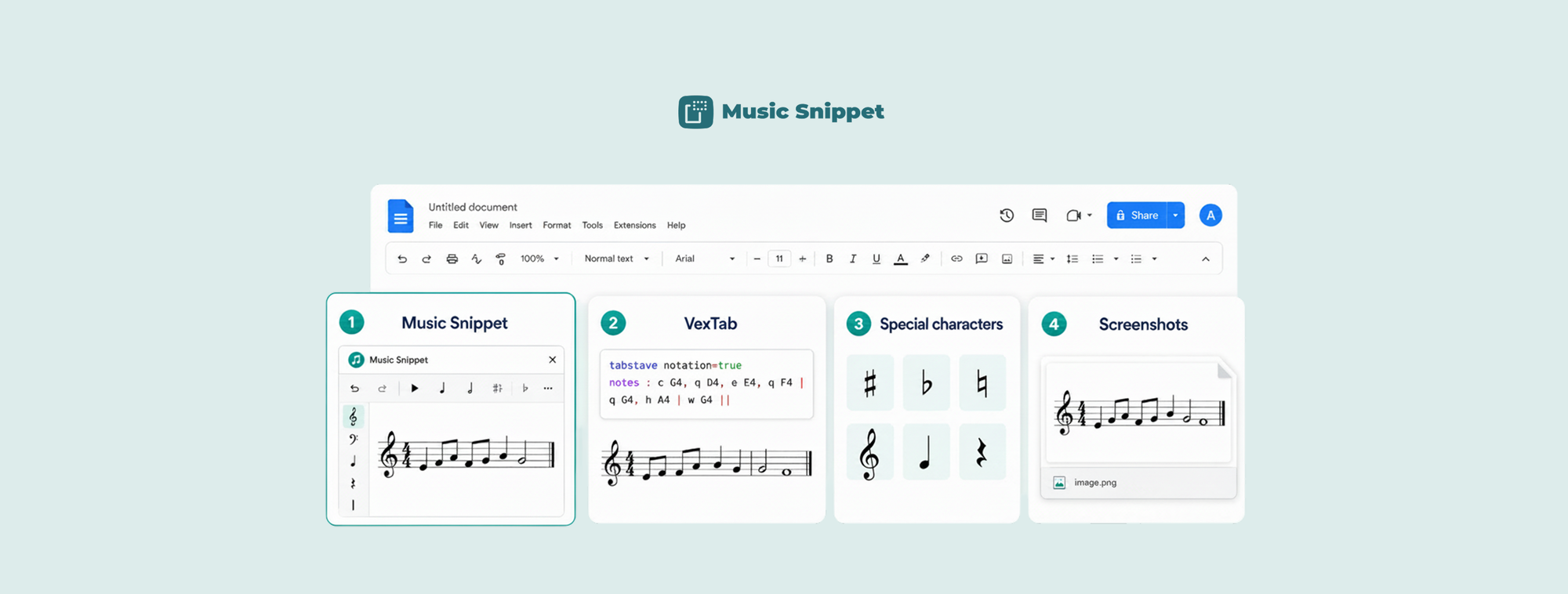
Google Docs will let you insert a chart, a drawing, an equation, even a watermark. Music notation isn't on the list. If you teach music and live in Google Docs, you've probably tried every workaround going: typed symbols, pasted screenshots, maybe a code-based add-on you abandoned after ten minutes. The good news is there genuinely are tools for this. The catch is they're not all the same, and the right one depends on what you're trying to do.
Here's an honest look at the real ways to get notation into a Google Doc, what each is good at, and where each falls down.
The four real options
Strip away the dead ends and there are four approaches worth knowing: two purpose-built add-ons, Google's own special characters, and the screenshot method. Let's take them in turn before lining them up side by side.
1. Music Snippet (visual notation add-on)
Music Snippet is a free add-on that gives you a visual, point-and-click notation editor in a side panel. You pick a stave, click notes onto it, set your clef and time signature, and insert the result into your Doc as a clean image. It handles standard notation, guitar and ukulele tablature, and an unpitched percussion staff. It's made by the team behind Flat for Education and is used by more than nine million people.
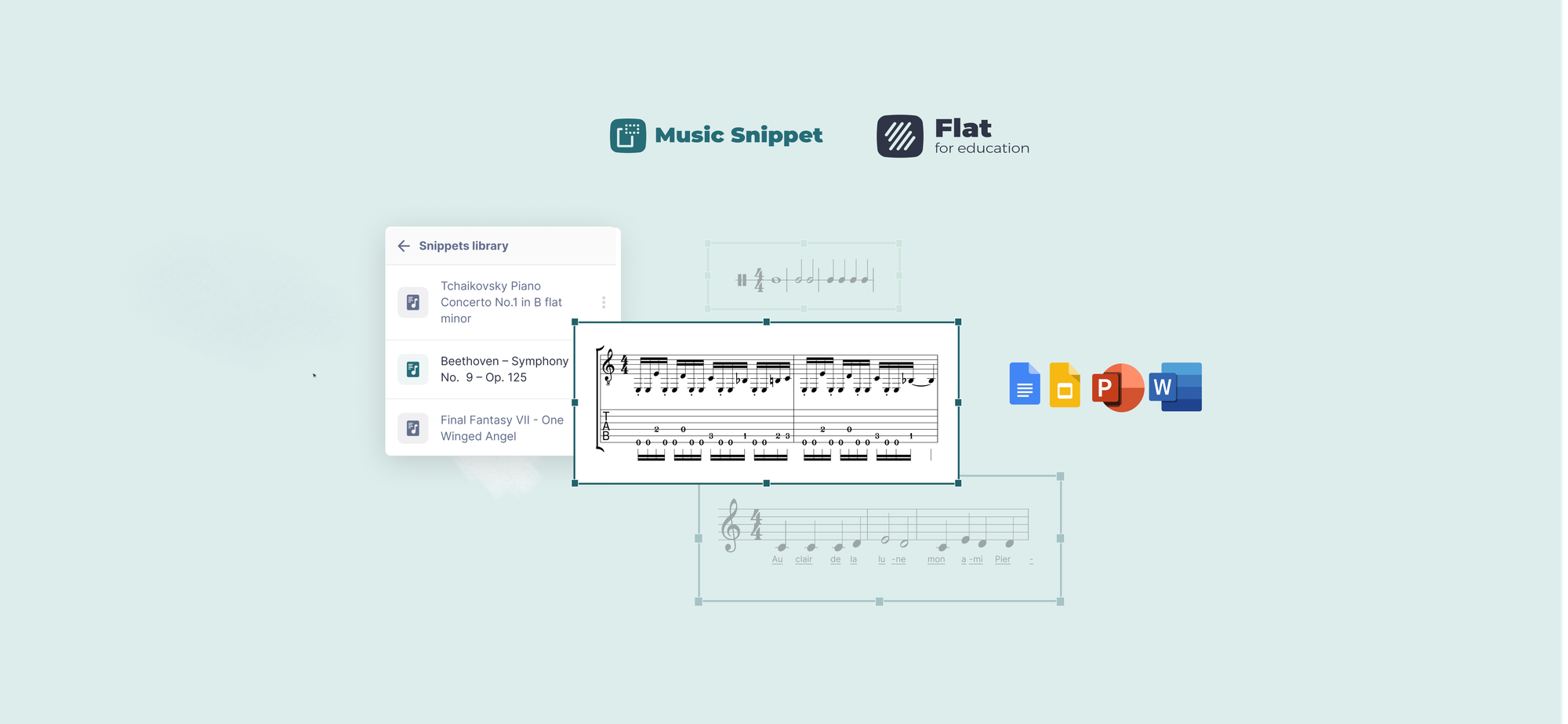
What sets it apart is reach and reuse: the same add-on also works in Google Slides, Microsoft Word, and PowerPoint, and if you sign in with a Flat for Education account your snippets are saved to a score library you can pull from later. The honest limitation is that it's built for short examples rather than full multi-page scores.
2. VexTab Music Notation (code-based add-on)
VexTab is a long-standing free add-on that renders notation from a text-based notation language. Instead of clicking notes, you type instructions like tabstave notation=true followed by note codes, then insert the rendered result as an image. It supports standard notation, drum notation, and guitar tablature.
For someone comfortable with the syntax, it can be quick. But the notation language is a real learning curve, and VexTab is focused on Google Docs rather than spanning Slides and Microsoft tools. Editing means going back into the code box rather than dragging notes around.
3. Google's built-in special characters
Google Docs has a special characters menu (Insert, then Special characters) with a Musical category. It's genuinely useful for dropping a single sharp, flat, or note symbol into a sentence. What it can't do is put notes on a staff, set rhythm, or build an actual musical example. It's for symbols in text, not notation. Treat it as punctuation, not a notation tool.
4. Screenshots from desktop notation software
The old reliable: write your example in a desktop program, export or screenshot it, and paste the image into your Doc. The upside is you get the full power of professional notation software. The downsides are familiar to anyone who's done it: blurry images when resized, no way to edit in the Doc, and a multi-step round trip every time you change a note.
Side by side
| Method | How you write | Works beyond Docs | Best for |
|---|---|---|---|
| Music Snippet | Visual editor (click notes) | Slides, Word, PowerPoint | Teachers who want notation software they already understand, reused across files |
| VexTab | Text notation language | Focused on Google Docs | Users comfortable typing notation syntax |
| Special characters | Pick a symbol from a menu | Within Google apps | A single musical symbol inside a sentence |
| Screenshots | In a separate program | Anywhere you can paste an image | Full pieces you've already made elsewhere |
A note on fairness: pricing and exact features for third-party tools change over time, so check each tool's current listing before you commit a whole department to it.
So which should you use?
If you want one tool that behaves like the notation software you already know, works across Docs, Slides, Word, and PowerPoint, and lets you save and reuse examples, Music Snippet is the most flexible choice for a working music teacher. That's not a knock on the alternatives. If you genuinely enjoy a text-based workflow and only ever work in Google Docs, VexTab does the job for free. If you just need a sharp sign in a sentence, the special characters menu is right there. And if you already have a finished piece in desktop software, a screenshot is the quickest path, blur and all.
The deciding question is usually how often you create notation and whether you reuse it. For the occasional symbol, stay native. For regular worksheets, slides, and handouts that you build and rebuild all year, a visual add-on saves real time.
The short version
Google Docs can't write music on its own, but you have options: a visual add-on, a code-based add-on, built-in symbols, or screenshots. For most music classrooms, a visual notation add-on that spans Docs, Slides, and Microsoft tools is the one that pays off across a school year.
FAQ
What are the options for adding music notation to Google Docs?
The main options are the Music Snippet add-on, the VexTab Music Notation add-on, Google's built-in special characters, and pasting screenshots from desktop notation software. Music Snippet and VexTab are the two purpose-built add-ons; special characters only insert isolated symbols, not a playable staff.
What is the difference between Music Snippet and VexTab?
Music Snippet uses a visual point-and-click notation editor, while VexTab uses a text-based notation language you type out. Music Snippet also works in Google Slides, Microsoft Word, and PowerPoint and offers a saved score library, whereas VexTab is focused on Google Docs.
Can Google Docs write music notation on its own?
Google Docs has no built-in way to write music on a staff. Its special characters menu can insert individual musical symbols like a sharp or a single note, but you cannot place notes on a staff or set a time signature, so it is not suitable for real notation.
What is the easiest way to add music notation to Google Docs?
For most music teachers, a visual notation add-on is the easiest option because it works like notation software they already know. A code-based tool can be faster for people comfortable typing notation syntax, but has a steeper learning curve.
Is the Music Snippet add-on free?
Music Snippet's basic snippet creation is free. Saving snippets to a library, editing them later, and unlimited storage require a Music Snippet licence or a connected Flat for Education or Flat Power account.