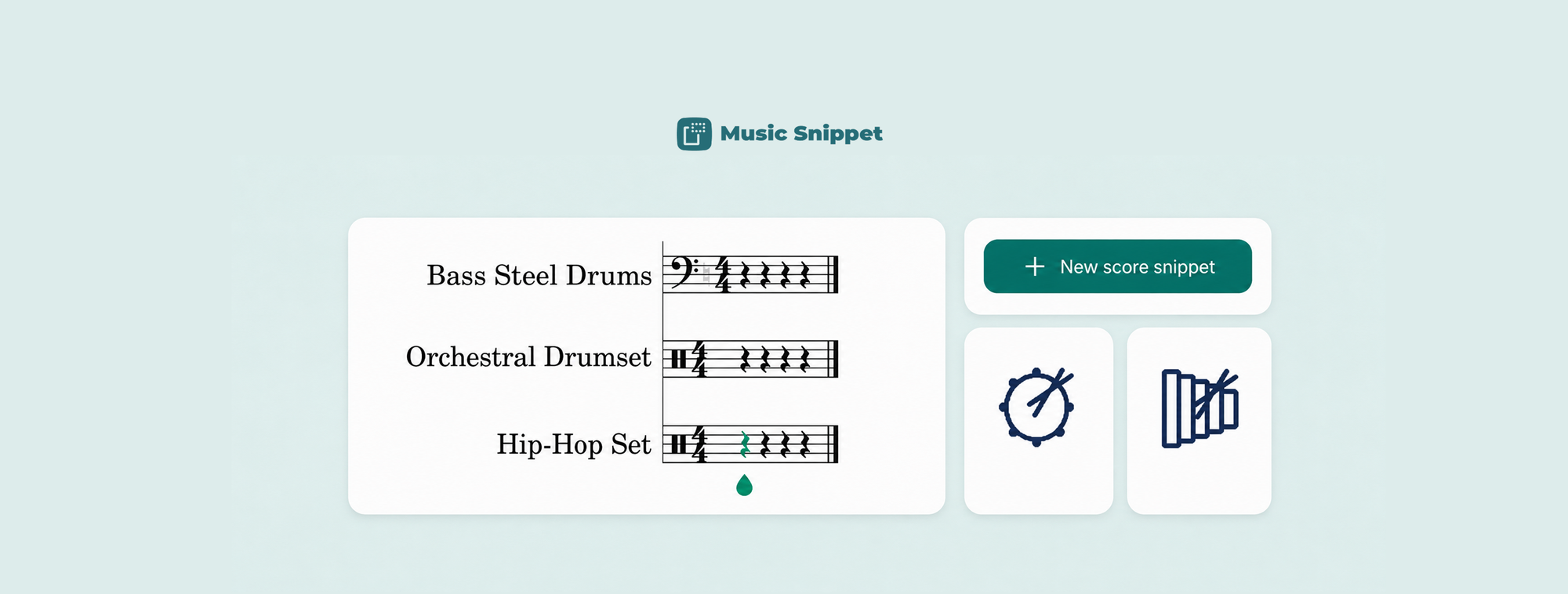
Rhythm is the first thing most music students learn and one of the hardest things to put into a worksheet. You want a clean line of drum notation in your Google Doc: a groove to clap, a fill to read, a rhythm dictation for Thursday's quiz. Google Docs gives you no way to write it. So out comes the screenshot routine again, or worse, a row of slashes and X's typed by hand that nobody can really read.
You can skip all of that. A free add-on called Music Snippet lets you write drum and rhythm notation on a proper percussion staff inside Google Docs and drop it into the document as a clean image. Here's how.
What is an unpitched staff?
An unpitched staff is a notation staff used for percussion and pure rhythm. Instead of showing pitch, the note positions represent drums or instruments, or they're simply read for their rhythmic value: the durations and where the beats fall. It's how drum grooves, clapping exercises, and rhythm dictations are written. For a general music or percussion teacher, it's the workhorse staff.
This is the staff type you'll use for most rhythm work, and it's one of the options Music Snippet gives you when you start a new snippet.
What is Music Snippet?
Music Snippet is a free add-on for Google Docs and Google Slides (and Microsoft Word and PowerPoint) that lets you create music notation, including an unpitched percussion staff, and insert it directly into your document. You write the notation in a side panel, then click once to place it in your Doc as an image. It's made by the team behind Flat for Education and used by more than nine million people.
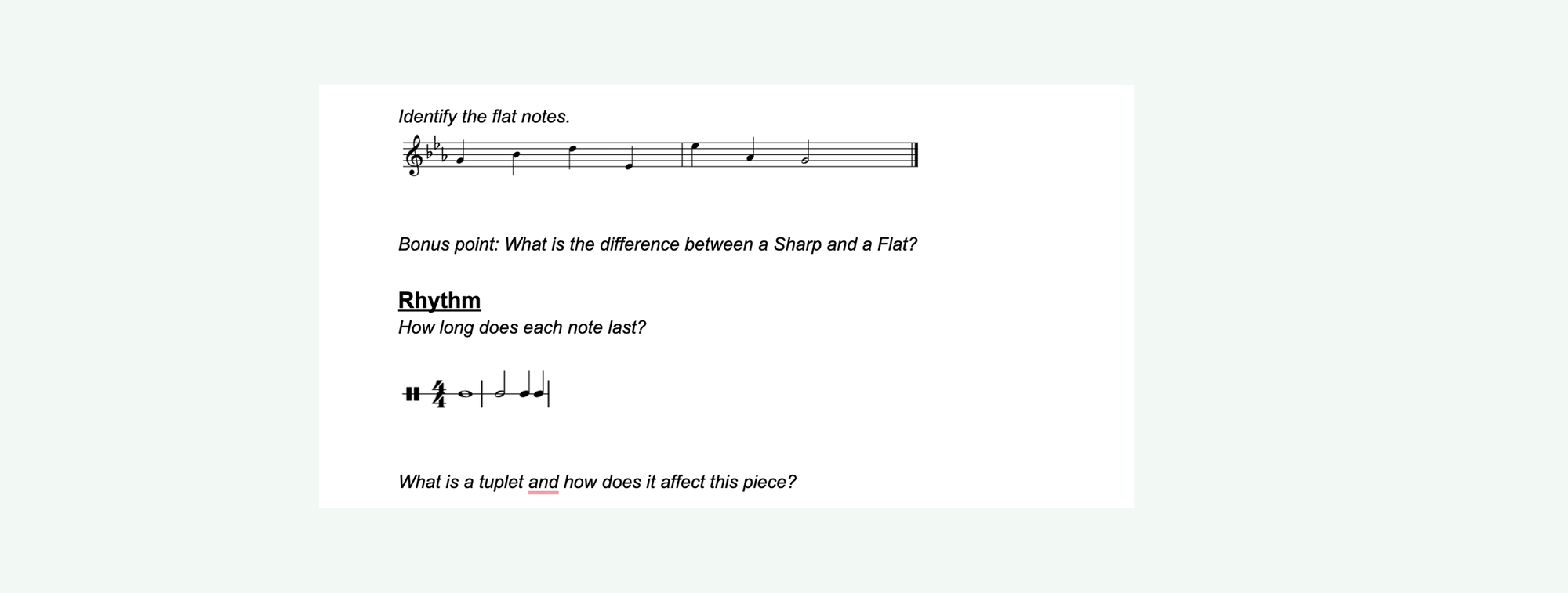
How to write drum notation in Google Docs, step by step
- Install the add-on. In a Google Doc, open the Extensions menu and choose "Get add-ons." Search for "Music Snippet" and install it.
- Open Music Snippet. Return to the Extensions menu, hover over Music Snippet, and click "Open Music Snippet." The editor panel opens on the right.
- Choose the unpitched staff. Click "New Music Snippet" and select the unpitched (percussion) staff. This gives you a rhythm stave rather than a pitched melody stave.
- Write your rhythm. Set the time signature, then enter your rhythm note by note. Keep it short and focused: one groove, one fill, or one dictation example per snippet.
- Add counting if you want it. Use the lyrics feature to place rhythm syllables (ta, ti-ti) or counting numbers under each note. This is one of the most useful things you can do for beginning readers.
- Insert it into your Doc. Click "Add to Document" and the notation lands where your cursor was, as a clean image you can resize and print.
What you can build with it
A rhythm-of-the-week handout where students clap the line and then write their own underneath. A drum-kit groove sheet for your percussionists, with the pattern written out and space for them to annotate sticking. Rhythm dictation quizzes where you notate the answer key in seconds instead of drawing it by hand. Because each example goes in as an image, you can build a full worksheet in Docs with explanatory text, the notation, and student response space all in one place.
One thing to set expectations on: Music Snippet is built for short examples, not full multi-page drum charts. For a groove, a fill, or an exercise, it's ideal. For an entire piece you'd move to the full editor.
Reuse your rhythms instead of redrawing them
Sign in with a Flat for Education account and every snippet saves to your score library in a dedicated Music Snippet folder. The rhythm set you wrote for one class is ready to reuse with the next, or to pull into a slide deck, since the same add-on works in Google Slides, Word, and PowerPoint too.
Stop screenshotting your rhythms
Writing drum notation in Google Docs doesn't have to mean a blurry screenshot or a line of typed X's. Install Music Snippet, choose the unpitched staff, and write the rhythm where you're already working.
FAQ
Can you write drum notation in Google Docs?
Yes. Google Docs has no built-in notation tool, but the free Music Snippet add-on lets you create an unpitched percussion staff, write your rhythm, and insert it into the document as an image. Open it from Extensions, choose the unpitched staff, and click Add to Document.
How do I make a drum or percussion staff in Music Snippet?
When you create a new snippet in Music Snippet, choose the unpitched staff option. It gives you a percussion stave for writing rhythms and drum patterns rather than pitched melody notes.
What is an unpitched staff?
An unpitched staff is a notation staff used for percussion and rhythm, where note positions represent instruments or are simply read for their rhythmic value rather than for pitch. It is the standard way to notate drums and rhythmic exercises.
Can I add rhythm syllables or counting under the notes?
Yes. Music Snippet supports adding lyrics, which teachers commonly use for rhythm syllables like ta and ti-ti or counting numbers placed under each note.
Is Music Snippet free?
The basic snippet creation in Music Snippet is free. Saving snippets to a library, editing them later, and unlimited storage require a Music Snippet licence or a connected Flat for Education or Flat Power account.